

In the modern era, having a quick and high-performing website is not a choice—it’s required!
Whether you’re a web developer, blogger, or small business owner, you want your site to perform well and load quickly.
Google Lighthouse is one of the greatest (and free!) tools to make that happen.
So, what is Google Lighthouse, anyway? And how do you use it? Don’t worry, I’ll make it easy to understand.
What is Google Lighthouse?
Google Lighthouse is an open-source tool by Google that assists you in improving your website.
It audits your web pages for speed, SEO, and usability. Then, after the audit, it provides suggestions for how to repair any problems.
The good news? It’s available to all, and you can apply it to any website.
Whether you are a web developer, an SEO specialist, or simply a website owner, Lighthouse can assist you in optimizing your site for performance and user experience.
Today, we will demonstrate how it works and how you can use it to audit your pages.
How to Use Google Lighthouse for Better Website Performance
With Chrome DevTools in your Chrome browser, you can run a Google Lighthouse audit.
Open the web page that you want to audit.
1. Using Google Chrome (Built-in Developer Tools)

Right-click anywhere on your website page and select “Inspect.“
2. Go to Lighthouse Tab
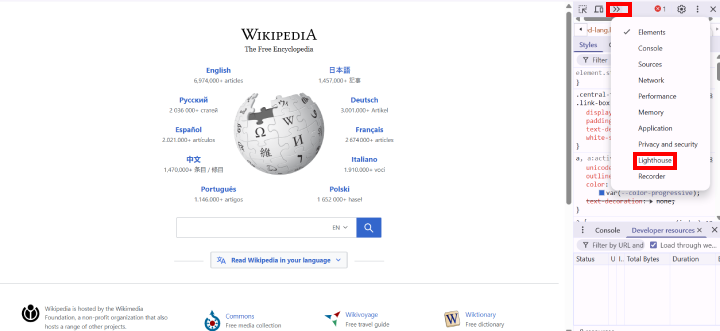
The Inspect function will open a DevTools panel on the right-hand side of the web page. Click on the “Lighthouse” tab in the toolbar of DevTools panel. (If you can’t find it, click the two arrows at the end of the toolbar. You’ll find it.)
3. Run the Report

Choose the performance categories you want to test, like Performance, Accessibility, SEO, etc., then click “Analyze page load.“
4. Viewing Results

Once the audit finishes, you’ll see a report with scores from 0 to 100 for each category and improvement tips.
5. Why You Might See an Extra Metric (TTI) in Chrome DevTools

On a side note: when performing a performance test with Lighthouse inside of Chrome DevTools, you may be provided with six speed metrics instead of five.
The extra one is Time to Interactive (TTI) – it measures how long it takes for a page to become fully responsive to user input (pressing buttons, clicking links, etc.).
While Google has officially stated that they are no longer using TTI as a core metric, it is still available to see in DevTools. Why it remains is not documented.
Using Lighthouse with Chrome Extension
1. Add the Extension

Go to the Chrome Web Store and install the Lighthouse extension. You’ll see its icon in your browser. Visit any website, click the Lighthouse icon, and choose “Generate Report.” The results will appear right away.
2. Run a Test

After a few seconds, you’ll see a full report showing scores and tips to improve your site.
Using Lighthouse in PageSpeed Insights
1. Open PageSpeed Insights

Go to PageSpeed Insights in your browser.
2. Enter Your URL
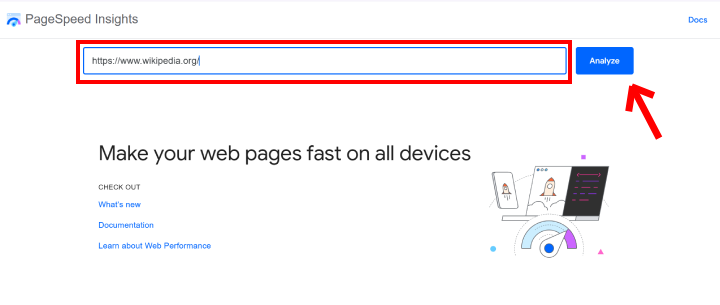
Type or paste your website link into the box and click “Analyze.“
3. View Your Lighthouse Report

Google will show you a report with scores and tips for both mobile and desktop views.
How Does Google Lighthouse Function?
Google Lighthouse tests your site by performing tests in five broad categories to determine how well it’s performing.
1. Performance
This section examines how quickly your site loads and how fast others can access it.

Lighthouse measures how fast a page loads and how responsive it is to user interaction. For Wikipedia, the overall performance score is 85, which is very good but has room for improvement.

Key Metrics Measured:
- First Contentful Paint (FCP): 0.3s
- The moment when the first element becomes visible.
- Largest Contentful Paint (LCP): 0.5s
- Measures when the primary content completes rendering.
- Total Blocking Time (TBT): 320ms
- How long the main thread is held up, holding user input.
- Cumulative Layout Shift (CLS): 0.001
- Layout stability measured. Practically perfect score!
- Speed Index (SI): 1.4s
- How fast content visually appears.
It evaluates five primary measurements of speed to indicate how quick various components of your page are functioning.
2. Accessibility

Accessibility tests verify that your website is easily accessible by users with disabilities. Wikipedia gets a full 100, which is an indication of perfect accessibility.
What’s Tested:
- Interactive elements are accessible by the keyboard.
- Buttons and form controls are correctly labeled.
- Logical tab order for screen readers.
- ARIA roles and landmarks are properly applied.
- Images have alternative text descriptions.
3. Best Practices
The best practices audit in Lighthouse verifies if your page is being accessed on the latest web development standards.

Critical Checks Passed:
- Uses HTTPS for secure browsing.
- All JavaScript libraries are safe and free from bugs.
- No deprecated APIs or frameworks detected.
- CSP (Content Security Policy) is enabled to prevent XSS attacks.
- Proper usage of COOP and XFO to protect against security threats.

Lighthouse score out of 100
The Lighthouse best practices report also identifies certain aspects that need your attention. Which can enhance your score.
4. SEO
A high SEO rating indicates the website is technically well-compliant, allowing search engines to crawl and interpret it properly. Wikipedia again scores a flawless 100.

What’s Working:
- Structured data is validly implemented.
- Meta tags and title tags are properly configured.
- Mobile responsiveness is perfect.
- Viewport settings and alt attributes are available.
FAQ
Q: What is Google Lighthouse?
Ans: Google Lighthouse is a free tool by Google that tests your website for speed, SEO, accessibility, and technical SEO. It can help you find out what is slowing your site down and offer suggestions to help you improve it.
Q: Can I trust Lighthouse scores?
Ans: Yes, Lighthouse does provide you with a good indication of the performance of your website, however, the scores can vary slightly with each time you test, since they are looked at in a simulated environment, not in real life like what users experience.
Q: Does Lighthouse help with SEO?
Ans: Lighthouse does not directly help with Google rankings, however, improving the aspects that it mentions (if they are issues, many times) such as slow speed or missing title or meta tags, will help improve the overall SEO and user experience.
Q: What is the difference between Lighthouse to Page insights?
Ans: Both use the same technology, but page speed insight shows real user data, whereas Lighthouse (inside Chrome) only shows lab data.
Conclusion
Web developers, SEOs, and owners can optimize their sites with services like Google Lighthouse which delivers a detailed report on various metrics of websites like performance, providing a unique user experience.
The tool provides diagnostics and recommendations by auditing speed, accessibility, best practices, and SEO.
Lighthouse can easily be integrated with DevTools, browser extensions or accessed using PageSpeed Insights.
Performing audits of your website frequently can help boost usability and engagement on searches as well as improve visibility and performance of the website.
Read more articles:-